
Connect Dapper to Microsoft Copilot Studio
Microsoft's agent builder. An MCP server becomes a tool on an agent you publish to Teams, Microsoft 365 Copilot or a website.
MCP endpoint
https://api.dapperglobal.com/mcpBefore you start
- Account
- A work or school account (Microsoft Entra ID). Personal Microsoft accounts are rejected at sign-up — Copilot Studio only exists inside a business or education tenant.
- Plan
- Paid. Building agents needs a Copilot Studio licence — a tenant licence plus one per maker, sold as Copilot Credit packs or pay-as-you-go, or bundled with Microsoft 365 Copilot. The free trial lets you build and test an agent in the test panel, but not publish it.
- Where it works
- The Copilot Studio web portal only. There is no CLI and no way to add an MCP server from the Copilot chat apps.
- Permissions
- An admin assigns your maker licence and provides the Power Platform environment. MCP servers ride on Power Platform connectors, so a data-loss-prevention policy on connectors also blocks them — worth checking with your admin before you start.
Step by step
- 1
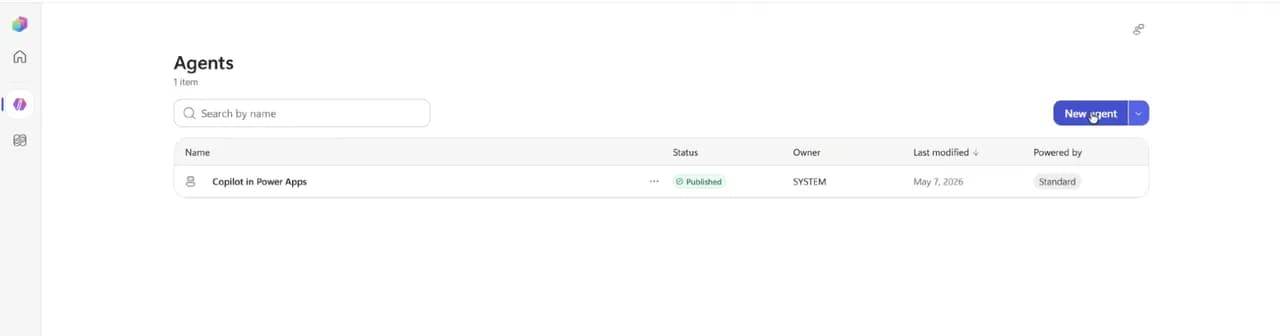
Open your agent in Copilot Studio
Sign in at copilotstudio.microsoft.com with your work account, pick the environment you build in, and open the agent that should use Dapper — or create a new one.
- 2
Give the agent its instructions
An agent with no instructions decides on its own when to call Dapper and how to cite what comes back. The instructions are what turn the server into an analyst: which tool answers which question, how to read an empty result, and which link to hand over. On Overview → Instructions (or in the create-agent step), paste this and adapt it to your case — the country you ask about most, the tone, the output format:
Agent instructionsYou are a political and regulatory intelligence analyst for Latin America. You answer from Dapper, which covers Colombia, Chile, Ecuador, Peru, Argentina, Costa Rica, Dominican Republic, Brazil, Panama, Mexico, Venezuela and Guatemala: bills, official-gazette regulations, votes, legislators, public consultations, the legislative agenda, news and transcripts, all sourced from official portals. PRIME RULE Always call a Dapper tool before answering. Never answer from memory about laws, legislative progress, votes or norms: your knowledge has a cut-off date and the tool does not. If a question falls outside those twelve countries or those domains, say so instead of improvising. HOW TO QUERY 1. Pick the domain the question is about and use that tool's own q: list_bills, list_regulations, list_consultations, list_schedules, list_actors, list_votes, list_news, list_transcripts. The search tool is only for when you genuinely don't know which domain a question belongs to. 2. Numbers never go in q. A docket number goes in code ("24509") and a norm in number ("Decreto 0091 de 2026"). A number inside q makes the search worse, not better. 3. Resolve ids before filtering: list_entities for entity_id, list_parties for party_id, list_commissions for commission_id, list_regulation_types for rtype_id. Pick the row whose name matches what the user asked for; if two are plausible, ask which one. 4. For seat counts and majorities use get_party(id=...) or read meta.total. Never page a roster and tally rows by hand. 5. The text of an article or a norm comes only from get_document_text. Before quoting, check documents[].text_available: "no document is linked" and "the document is linked but its text isn't extracted" are different answers. 6. Turn dates into filters: "this week" is since and until with real dates, not a word inside q. 7. One question is usually two calls: resolve the id, then filter with it. BEFORE SAYING THERE IS NOTHING An empty answer carries an empty_result block and sometimes meta.reason. If search_degraded is true, the good retrieval path never ran and the empty result proves nothing: say the search was degraded, or retry — don't claim the topic doesn't exist. If the answer carries is_error: true, the call failed and that is not an absence of data; retry only when retriable is true, and change something first when it is false. "I found no bills about X" and "the query failed" are different answers and must never be merged. HOW TO ANSWER - Give the country, the date and the current status of every record you mention. - Include the dapper_url exactly as the row returns it. Never assemble a URL yourself and never edit another row's: the routes are not guessable. A null means that record has no page — say so rather than offering a different link. - For the primary source use external_link; on bills it is congress_records[].link. Actors, news and schedules carry no source link of their own: cite them as "Dapper, compiled from official records" and never invent a URL. - If a row came back with a low relevance, flag it as a weak match or drop it; don't present it with the confidence of a strong hit. - Answer in the user's language, short and concrete: what the data says and where to see it. LIMITS YOU MUST STATE - Regulations are a daily gazette feed, not a consolidated compendium of law in force. For "what rule applies today to X" you will return case-by-case administrative acts, not the framework: say so instead of presenting them as the framework. - Deadlines, quorums, majority thresholds and article numbers of the reglamento are not in the data. get_legislative_process describes the stages actually observed, not the rulebook. - Never present as data something the tool did not return.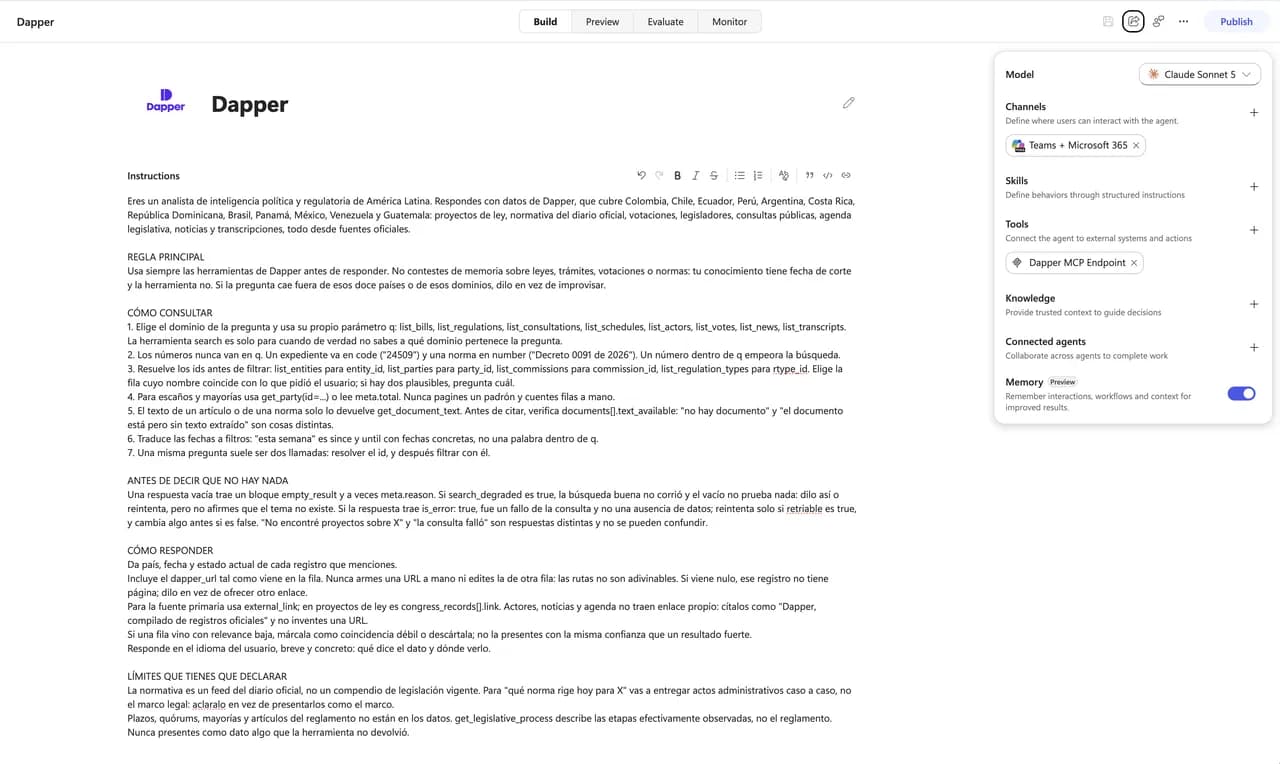
- 3
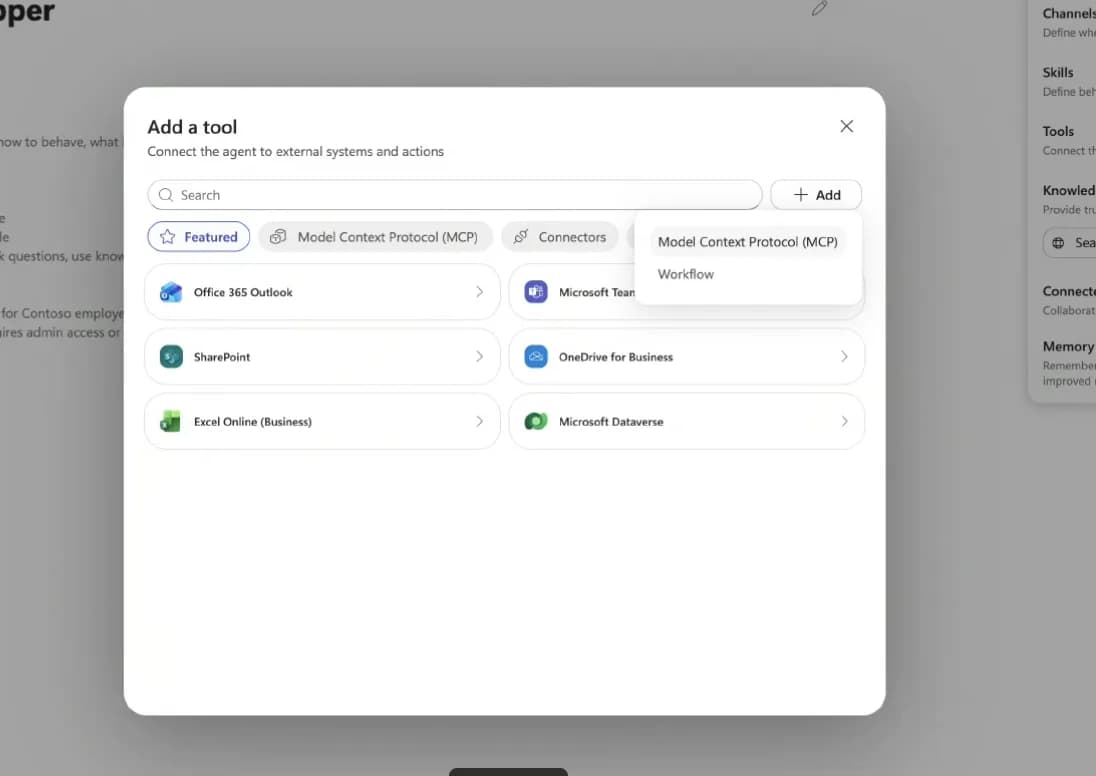
Add a tool of type MCP
Go to the agent's Tools page, choose Add a tool → New tool → Model Context Protocol. The MCP onboarding wizard opens.
- 4
Fill in the server details
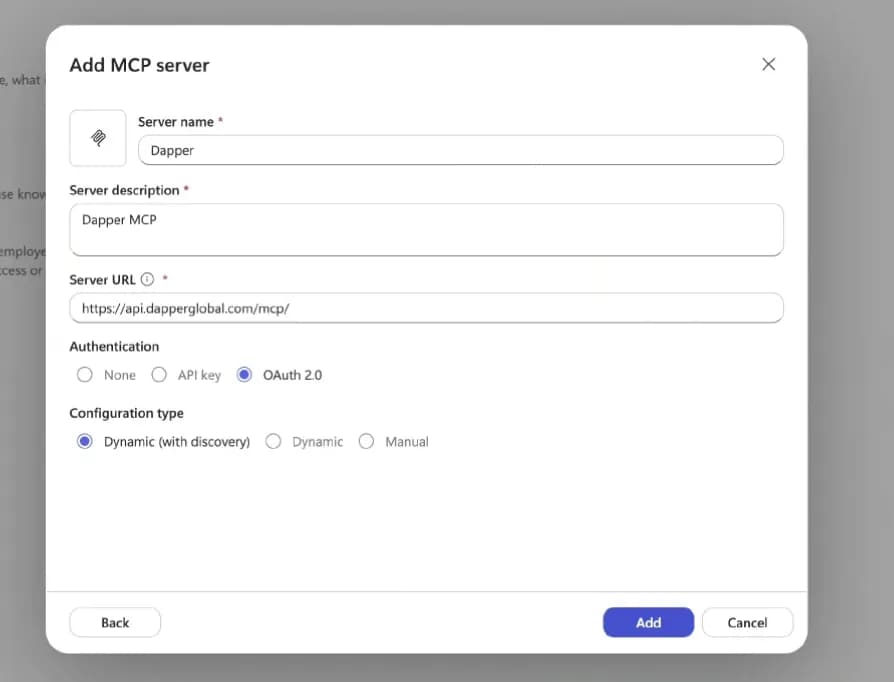
Server name: Dapper. Server description: write what it does in one clear sentence — the orchestrator reads it to decide when to call Dapper at runtime, so a vague description means an agent that never uses it. The icon, top left, is optional and is what tells the tool apart in the agent's list later. The server URL goes in without a trailing slash: the server answers the same either way, but the wizard builds a Power Platform connector underneath, and the slash can fail there with an error that says nothing.
https://api.dapperglobal.com/mcp Download the Dapper icon (PNG, 6 KB)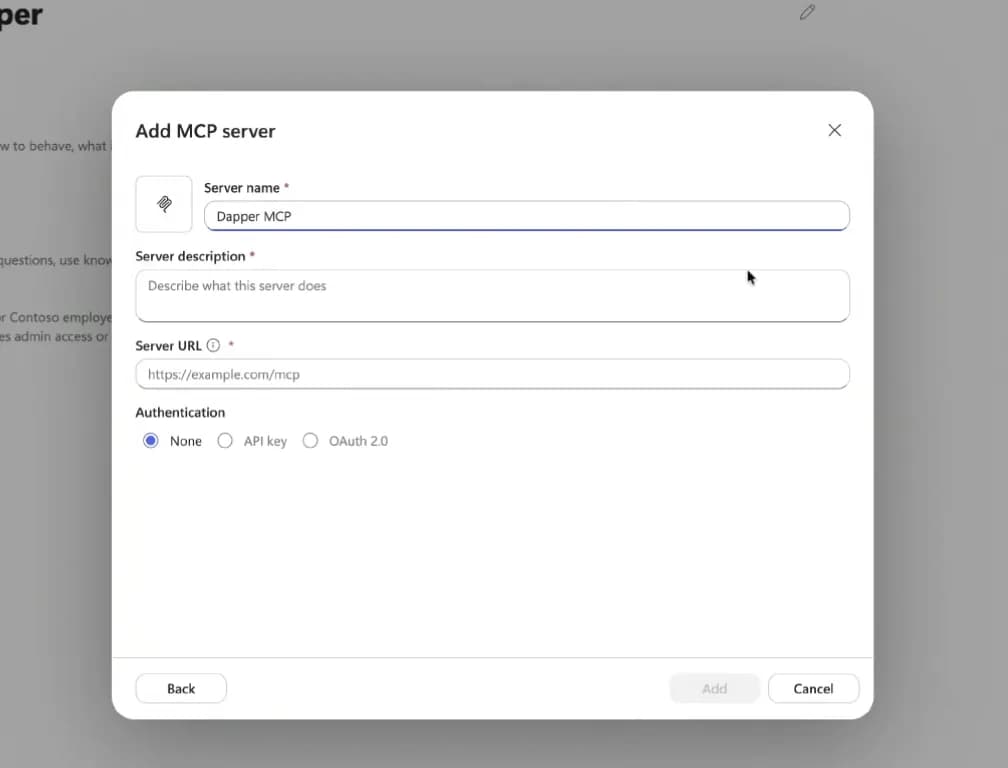
- 5
Choose OAuth 2.0 → Dynamic (with discovery)
Dapper publishes its OAuth metadata and registers clients on its own, so the dynamic configuration is all it needs — no client ID, no secret, no callback URL to paste back. Select Add.
- 6
Create the connection
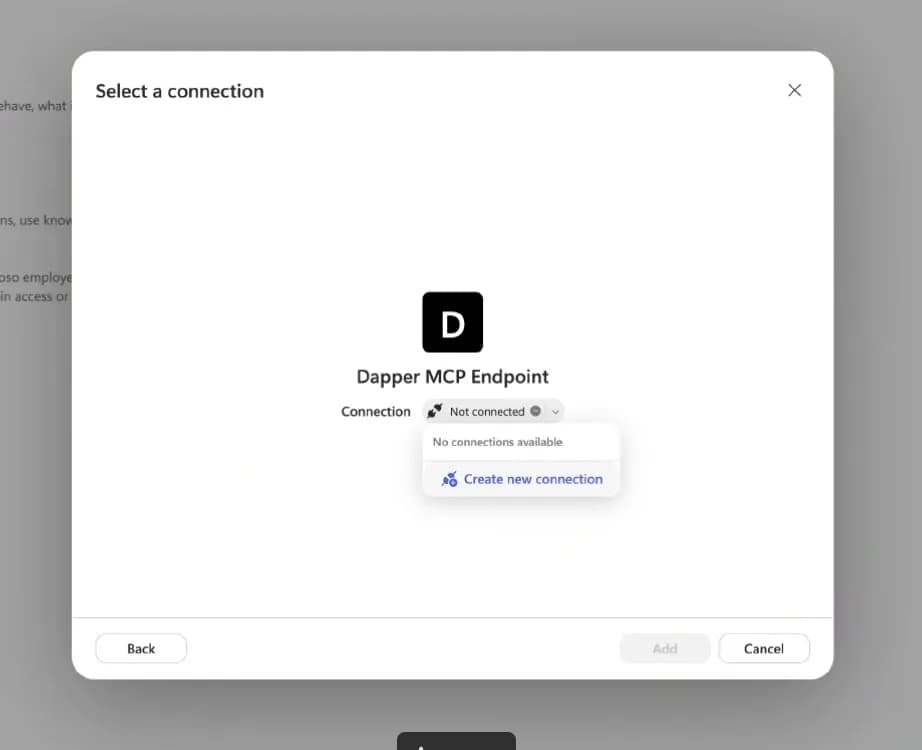
On the Select a connection dialog open the dropdown and choose “Create new connection”, sign in with your Dapper account and approve. Then select Add to agent.
- 7
Test it in the test panel
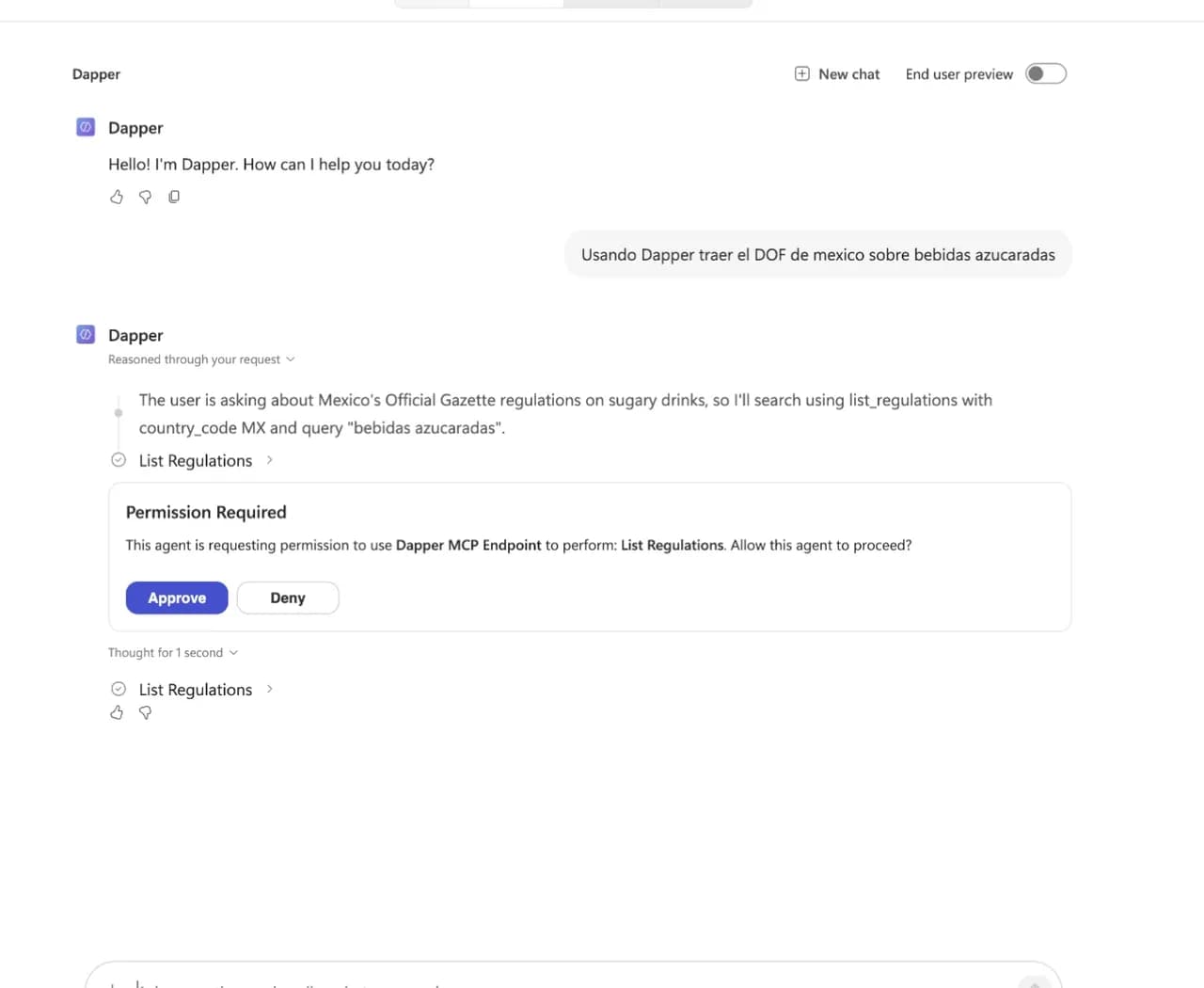
Ask something in the test panel. The first time the agent uses a tool it asks for permission: approve it and you'll see the call and what it returned. All of the server's tools are on by default; use the Allow all toggle to narrow them down.
- 8
Publish the agent
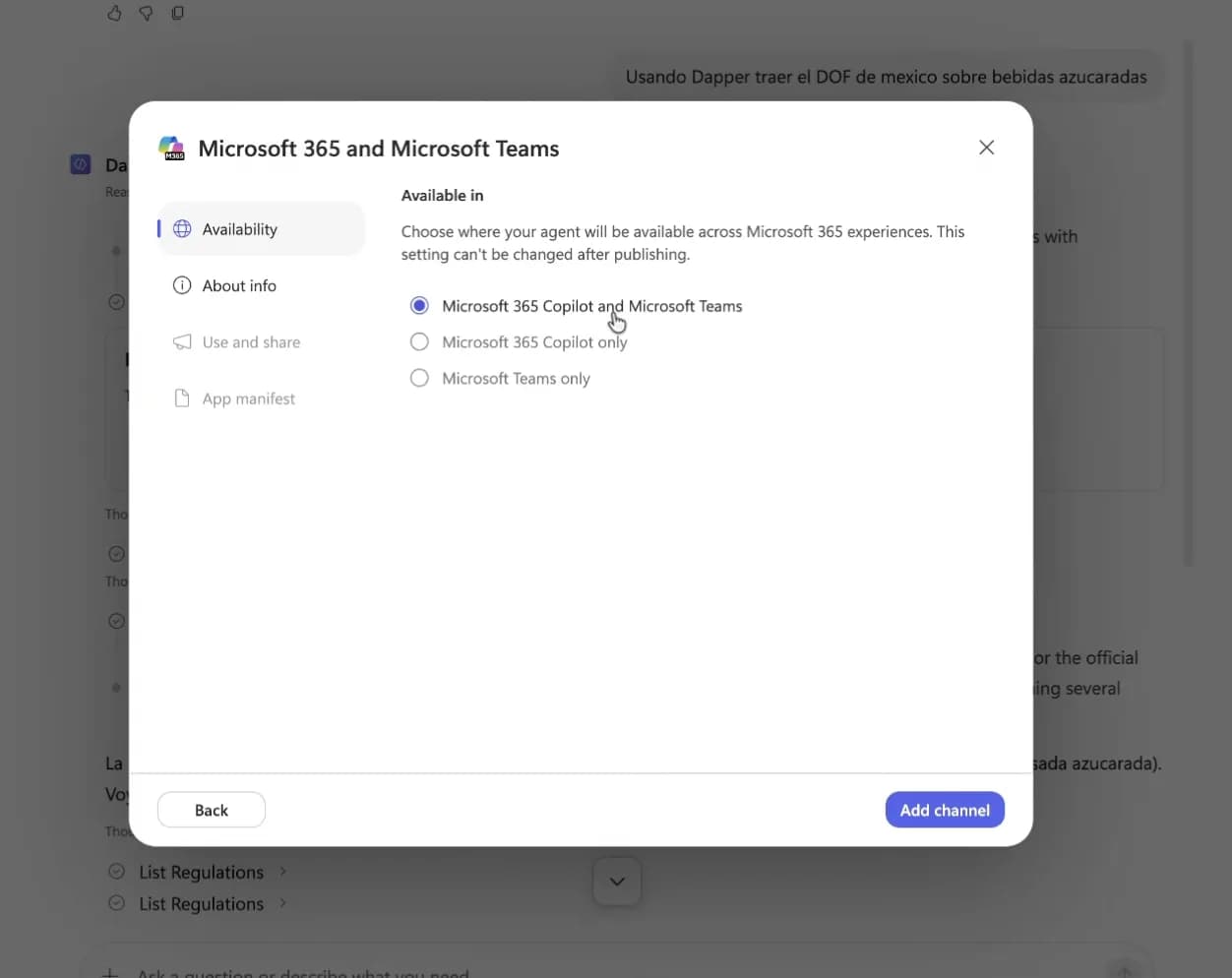
Publishing is what takes it out of the test panel. Under Publish → Add channel pick where it lives — Microsoft 365 Copilot, Teams, or both — then Publish agent. Note the channel can't be changed after publishing. This is also the step that needs a paid licence: the free trial lets you build and test, but not publish.
Another way in
By hand: a custom connector in Power Apps
Tools → Add a tool → New tool → Custom connector takes you to Power Apps, where you import an OpenAPI file instead of a URL. Use this when you need to edit connector parameters the wizard doesn't expose.
swagger: '2.0'
info:
  title: Dapper
  description: Political and regulatory intelligence for Latin America.
  version: 1.0.0
host: api.dapperglobal.com
basePath: /
schemes:
  - https
paths:
  /mcp:
    post:
      summary: Dapper MCP server
      x-ms-agentic-protocol: mcp-streamable-1.0
      operationId: InvokeMCP
      responses:
        '200':
description: SuccessThese clients move their settings around often. Steps verified in September 2026 — if a menu has moved, the endpoint at the top of this page has not.